
Digital gaming has changed the way people buy, play, and share games. Instead of purchasing physical discs, many PlayStation users now build large digital libraries through the PlayStation Store. One of the most useful features available to PS5 owners is game sharing, which allows trusted friends or family members to access each other’s digital game collections.
How to game share on PS5, you’re not alone. Thousands of gamers search for this feature because it helps save money while giving access to a wider variety of games. Whether you want to share your favorite titles with a sibling or split game purchases with a close friend, understanding the process can make your gaming experience much better.
What Is Game Sharing on PS5?
Game sharing is a feature that allows another user to access and play digital games purchased through your PlayStation Network (PSN) account. By enabling Console Sharing and Offline Play on a PS5 console, your digital library becomes available to other users on that console.
Many gamers use this feature to reduce gaming costs. Instead of buying the same game twice, two trusted users can share access to a single digital purchase. How to game share on PS5 begins with understanding how Sony’s licensing system works. Digital games are tied to a PSN account, but Console Sharing allows those licenses to be accessed by other users on a designated console.
Benefits of PS5 Game Sharing
Some of the biggest advantages include:
- Save money on game purchases
- Access a larger game library
- Share games with family members
- Enjoy multiplayer experiences together
- Download digital games without buying them separately
- Share certain PlayStation Plus benefits
For gamers on a budget, learning how to game share on PS5 can significantly increase the value of every game purchase.
Read More: Why GameSir G7 Pro Is Becoming a Popular Gaming Controller
How PS5 Console Sharing and Offline Play Works
Sony replaced the old “Primary PS4” system with a feature called Console Sharing and Offline Play on the PlayStation 5. When this setting is enabled:
- Other users on the selected console can access your games.
- Downloaded games can be played offline.
- Shared content becomes available across user profiles.
- Certain PlayStation Plus features can be shared.
The system is designed to make family gaming more convenient while still protecting digital ownership rights.
Requirements Before You Start Game Sharing
Before you learn how to game share on PS5, there are a few requirements you should meet.
- A PlayStation Network Account: Both users need valid PSN accounts. Your purchased games are linked to this account.
- A PS5 Console: At least one PlayStation 5 console is required. Many users share between two PS5 consoles, although PS4 and PS5 combinations may also work for compatible games.
- Internet Connection: You’ll need internet access during setup to verify account ownership and game licenses.
- Trusted Sharing Partner: Only share your account with someone you completely trust. Since your account contains payment information and personal data, security should always be a priority.
Important Rules and Limitations
Before setting up game sharing, it’s important to understand Sony’s restrictions.
| Feature | Supported |
| Share Digital Games | Yes |
| Share Installed Games | Yes |
| Share PlayStation Plus Benefits | Partially |
| Share DLC Content | Sometimes |
| Share Across Multiple Consoles Simultaneously | Limited |
| Share Physical Disc Games Digitally | No |
How to Game Share on PS5: Step-by-Step Guide
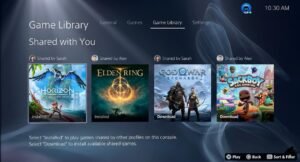
Now let’s get into the actual process of how to game share on PS5.
Step 1: Sign In on the Second PS5
Start by logging into your PSN account on the PS5 that will receive access to your games. To do this:
- Open the PS5 home screen.
- Select Add User.
- Sign in using your PSN credentials.
- Complete any security verification steps.
Step 2: Open Users and Accounts
After signing in:
- Go to Settings.
- Select Users and Accounts.
- Scroll down to Other.
This section contains the sharing settings required for game sharing.
Step 3: Enable Console Sharing and Offline Play
Now you’ll activate the feature.
- Select Console Sharing and Offline Play.
- Choose Enable.
Once enabled, other users on this PS5 can access your digital library. This is the most important step when learning how to game share on PS5 because it grants game access to other accounts on the console.
Step 4: Download Shared Games
After enabling sharing:
- Open Game Library.
- Browse purchased titles.
- Select the games you want to share.
- Download them to the console.
The games will now appear on the system for other users.
Step 5: Switch to the Other User Account
Log out of your PSN account and switch back to the other user’s profile. If everything is configured correctly, they should see the installed games in their library and be able to launch them normally.
Step 6: Test the Shared Games
Open one of the shared games and verify it starts correctly. If the game launches without license errors, the setup was successful. At this point, you’ve completed the process of how to game share on PS5 and can begin enjoying shared content.
How to Access Shared Games on PS5
Many users successfully share games but become confused when trying to find them afterward. Here’s how to access shared games.
Open Your Game Library: Navigate to the Game Library section from the PS5 dashboard. Shared titles should appear among installed games.
Download Purchased Titles: If a shared game isn’t installed:
- Sign into the owner’s account.
- Visit the game library.
- Download the game.
- Switch back to your account.
Launch Games From Your Own Profile: Once installed, most shared games can be launched directly from your personal profile. This allows players to earn trophies, save progress, and maintain separate gaming histories.
Can You Share PlayStation Plus Through Game Sharing?
One of the most common questions related to how to game share on PS5 involves PlayStation Plus. The answer is partially yes. Many PlayStation Plus benefits can be shared, including:
- Online multiplayer access
- Downloaded monthly games
- Certain subscription features
However, some benefits remain exclusive to the account owner.
Shared PlayStation Plus Benefits
Benefits that often transfer include:
- Online gaming
- Shared installed PS Plus games
- Multiplayer functionality
Benefits That May Not Transfer
Some account-specific features may not be shared, such as:
- Exclusive discounts
- Certain cloud storage features
- Account-specific rewards
Always verify current PlayStation policies, as Sony occasionally updates sharing rules.
Why Gamers Use PS5 Game Sharing
Game prices continue to rise, making game sharing increasingly attractive. Benefits include:
- Reduced gaming expenses
- Access to larger libraries
- Better value from digital purchases
- Easier family gaming setup
- Shared multiplayer experiences
For many households, learning how to game share on PS5 can save hundreds of dollars each year on gaming purchases.
PS5 Game Sharing vs PS4 Game Sharing

Many PlayStation users own both a PS4 and a PS5, which raises the question of whether game sharing works across generations. The good news is that many digital games purchased through the PlayStation Store can be accessed on both systems if the game supports cross-generation compatibility.
However, the setup process differs slightly because the PS4 uses the “Primary PS4” feature, while the PS5 uses “Console Sharing and Offline Play.” If you’re already familiar with how to game share on PS5, you’ll find the process similar, although each console has its own settings menu and sharing limitations.
Key Differences
- PS5 uses Console Sharing and Offline Play.
- PS4 uses Primary PS4 activation.
- Some games support cross-generation access.
- Not all PS5-exclusive games work on PS4.
Understanding these differences helps avoid confusion when sharing games between console generations.
Troubleshooting Common PS5 Game Sharing Problems
Even after successfully learning how to game share on PS5, you may occasionally encounter issues. Fortunately, most problems are easy to fix.
Shared Games Are Not Appearing
If games do not show up in the library:
- Sign into the game owner’s account.
- Verify the game has been purchased.
- Check that Console Sharing is enabled.
- Restart the console.
License Verification Errors
Sometimes users see messages stating that a license cannot be verified. To fix this:
- Open Settings.
- Select Users and Accounts.
- Go to Other.
- Choose Restore Licenses.
This refreshes ownership information and often resolves access issues.
Unable to Launch Shared Games
If a shared game closes immediately after opening:
- Confirm internet connectivity.
- Verify the game owner still owns the title.
- Check whether Console Sharing remains active.
PlayStation Plus Benefits Not Working
Certain PlayStation Plus features may not transfer to shared users. If multiplayer access is unavailable, verify that the subscription is active and that sharing settings are configured correctly.
Advanced Tips for Better Game Sharing
After mastering how to game share on PS5, consider these best practices to improve your experience.
Enable Two-Factor Authentication: Security should always come first. Two-factor authentication adds an extra layer of protection to your PlayStation account.
Share Only With Trusted People: Your PSN account may contain payment methods, purchase history, and personal information. Only share access with someone you know and trust.
Keep Login Information Private: Avoid sharing account credentials through insecure messaging apps or public networks.
Monitor Account Activity: Regularly review account sign-in activity to ensure there are no unauthorized access attempts.
Advantages and Disadvantages of PS5 Game Sharing
Like any feature, game sharing has both benefits and drawbacks.
Advantages
- Saves money on digital purchases
- Expands your game collection
- Makes family gaming easier
- Provides access to shared content
- Increases value from PlayStation Plus subscriptions
Disadvantages
- Requires account trust
- May cause license conflicts
- Some content cannot be shared
- Security risks if account information is mishandled
For most users, the advantages outweigh the disadvantages when game sharing is used responsibly.
How to Game Share on PS5
If you’re looking for a simple summary of how to game share on PS5, follow these steps:
- Sign into your PSN account on the second PS5.
- Open Settings.
- Navigate to Users and Accounts.
- Select Console Sharing and Offline Play.
- Enable the feature.
- Download purchased games.
- Switch to the other user profile.
- Launch and enjoy shared games.
This process allows trusted users to access eligible digital games from the account owner’s library.
Conclusion
How to game share on PS5 is one of the best ways to maximize the value of your digital game purchases. By enabling Console Sharing and Offline Play, trusted friends or family members can access eligible games from your library without purchasing separate copies. Whether you’re trying to save money, expand your gaming options, or share entertainment with loved ones, understanding how to game share on PS5 can significantly improve your PlayStation experience.
Just remember to prioritize account security, enable two-factor authentication, and share only with people you trust. PS5 game sharing is a convenient feature that helps gamers enjoy more content while getting the most out of their PlayStation ecosystem.
FAQs
Q1: Is game sharing on PS5 legal?
Ans: Yes. Sony officially supports game sharing through the Console Sharing and Offline Play feature. However, it should only be used according to PlayStation’s terms and with trusted individuals.
Q2: Can two people play the same shared game at the same time?
Ans: In many cases, yes. Depending on the game and account setup, both users may be able to access the game simultaneously.
Q3: How many consoles can use game sharing?
Ans: A PlayStation account can only have one PS5 console enabled for Console Sharing and Offline Play at a time.
Q4: Does game sharing work with PlayStation Plus?
Ans: Many PlayStation Plus benefits can be shared, including online multiplayer access, though some account-specific features may not transfer.
Q5: Can I lose access to shared games?
Ans: Yes. If the owner removes sharing permissions, changes account settings, or loses access to the purchased game, shared access may end.
Q6: Is game sharing safe?
Ans: It can be safe when done with trusted friends or family members and when strong security measures such as two-factor authentication are enabled.
Q7: Can I game share with someone in another country?
Ans: Yes. In most cases, location does not prevent game sharing, although regional restrictions may affect certain content.
Q8: What happens if I disable Console Sharing and Offline Play?
Ans: Other users on that console will typically lose access to your shared digital games and related benefits.